PDF vs Word: Which Format Is Better for Contracts?
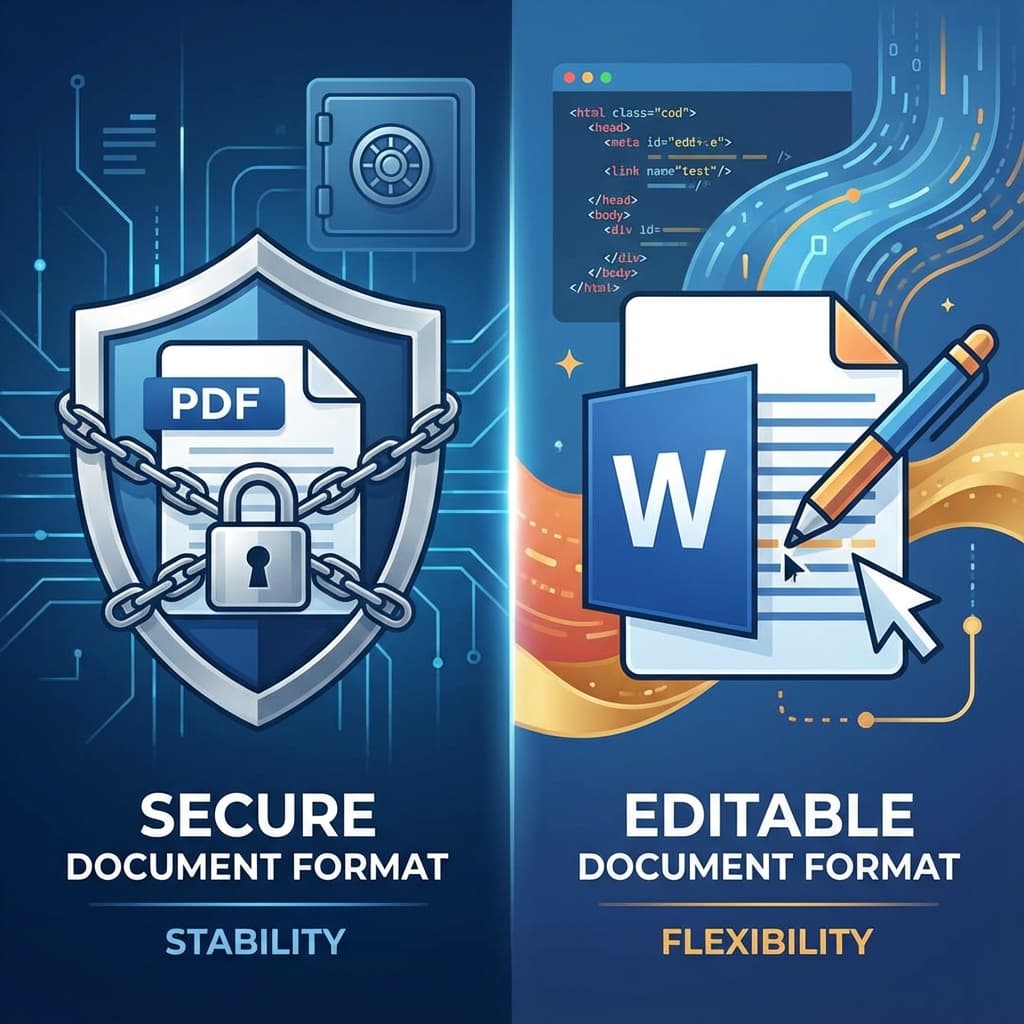
It's the classic office standoff. You send a contract in Word so they can review it. They send it back as a PDF. You convert it back to Word to make changes. It's a mess. When the stakes are high—like closing a deal or signing a lease—the file format you choose actually matters more than you think. Let's settle this debate once and for all.
The GenZDoc team builds free, privacy-first file tools and writes practical guides on PDF compression, image conversion, and everyday file management.
Real-Life Example: The Edited Invoice That Wasn't
A freelance web developer sent a final invoice to a client as a Word document. The client claimed the price had been "agreed at $1,200" — but the developer's invoice clearly said $2,400. There was no way to prove the document hadn't been modified after sending.
If the invoice had been sent as a PDF, the timestamp, formatting, and content would have been locked. Editing a PDF without a dedicated tool (and leaving no trace) is far harder than editing a .docx file in Word.
This is a real risk that many freelancers and small businesses ignore. The format you send a final agreement in isn't just cosmetic — it's a document integrity decision.
The Case for Word (.docx)
Microsoft Word is the king of drafting. When you are in the negotiation phase, nothing beats distinct adjustability.
- Track Changes: This is the gold standard for negotiations. You can cross out a clause, suggest a new price, and leave a comment—all while keeping the history visible.
- Ease of Editing: If you spot a typo in a 50-page agreement, fixing it in Word takes two seconds. In a finalized PDF, it can be a headache without the right tools.
Verdict: Use Word while you are still arguing over the terms. It's a workspace, not a final canvas.
The Case for PDF (.pdf)
PDF (Portable Document Format) stands for one thing above all else: integrity. Once a contract is agreed upon, it needs to be frozen in time.
- What You See Is What You Get: A PDF looks the same on a Mac, a Windows PC, a tablet, or a phone. Word docs? Not so much. Formatting often breaks when fonts are missing or versions don't match.
- Security: It is much harder to "accidentally" delete a zero from a price in a PDF. While PDFs can be edited (we have tools for that), they aren't meant to be fluid documents like Word files.
- Legal Standard: Courts and e-signature platforms prefer PDFs because they preserve the document structure. A digital signature on a PDF is robust; a signature image pasted into Word is flimsy.
Verdict: Use PDF for the final version that is ready to be signed.
The Perfect Workflow
You don't have to choose just one. The smartest businesses use a hybrid workflow to get the best of both worlds:
- Draft in Word: Create your initial agreement in Word. Use "Track Changes" to negotiate terms with the other party.
- Finalize & Convert: Once everyone says "Yes," accept all changes to clean up the document. Then, immediately convert that Word doc to PDF. This "locks" the formatting.
- Sign Securely: Send the PDF for signature. You can use our Sign PDF tool to add your legal signature digitally.
- Archive: Save the signed PDF. Ideally, convert it to PDF/A format if you need to store it for decades.
But What If You Need to Edit a Signed PDF?
It happens. You signed the contract, converted it to PDF, and then realized you spelled the client's name wrong. Panic mode? No.
You have two options:
- Quick Fix: Use an Edit PDF tool to whitelist over the error and type the correction directly.
- Heavy Rewrites: If you need to rewrite paragraphs, don't struggle in a PDF editor. Use a PDF to Word converter to turn it back into an editable doc, make your changes, and re-export.
Common Mistakes to Avoid
- Sending a final contract as .docx: Once negotiation is complete, always convert to PDF before sending for signatures. Sending .docx means the other party can modify the terms, accidentally or intentionally.
- Signing a JPEG screenshot of a contract: Some people take a screenshot of a contract and sign the image. This has extremely weak legal standing. Use a proper PDF with a digital signature from a tool like DocuSign or a PDF Sign tool.
- Accepting a scanned PDF letter as a "final signed contract": A scan of a handwritten signature on printed paper is a common workaround, but it's much weaker than a properly applied digital signature with an audit trail.
Pro Tips for Professional Contract Management
💡 Always Archive the Final Signed PDF
Once a contract is signed, save the PDF in at least two places — a cloud folder and a local backup. Contract disputes can arise years later and having the original timestamped PDF is invaluable.
💡 Use PDF/A for long-term archiving
PDF/A is an ISO standard specifically designed to ensure PDFs remain readable for decades. If you need to store contracts long-term (10+ years), convert them to PDF/A format to ensure they won't degrade or become unreadable with future software updates.
Ready to Finalize Your Contract?
Turn your draft into a secure, professional PDF in seconds. No uploads, no data storage—just secure processing in your browser.