How to Convert Excel to PDF: The Complete 2026 Guide
Converting a complex Excel file to a clean PDF sounds simple. But then you open the final result and discover your financial columns are cut off. Let us fix that without any headache.
The GenZDoc team builds free, privacy-first file tools and writes practical guides on PDF compression, image conversion, and everyday file management.
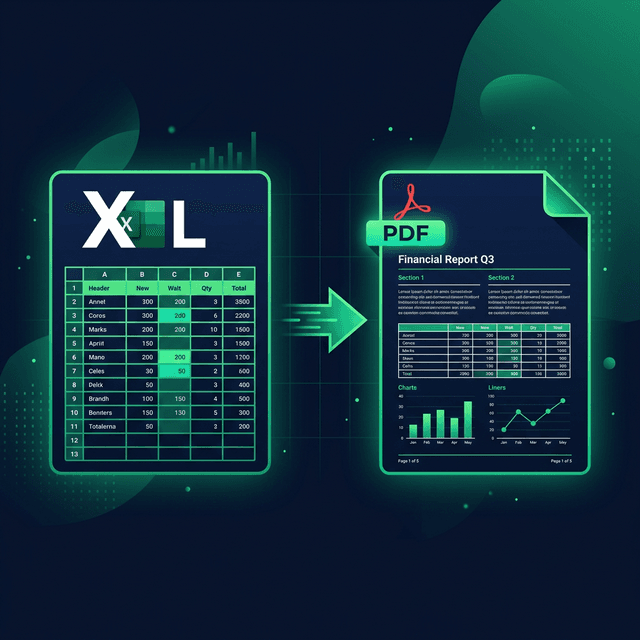
Real-Life Example: The Broken Report
Let us look at David, a project manager. He spent three days building a Q3 budget spreadsheet. Ten minutes before the board meeting, he clicked "Save As PDF."
During the meeting, he opened his PDF. Disaster struck. The "Total Profit" column was shoved onto Page 2. His pie charts were sliced in half. Spreadsheets do not behave like Word documents. They require specific formatting rules before export.
Why Conversion Goes Wrong
- Data columns get cut off at the vertical page edge.
- Text becomes tiny because the software tried fitting a wide spreadsheet onto a single A4 piece of paper.
- Charts are split awkwardly across multiple pages.
Common Mistakes to Avoid
- Ignoring the Page Break Preview: Toggle the "Page Break Preview" button before exporting. This shows you exactly where the PDF page cuts will happen.
- Leaving hidden columns active: If you hid columns, some free converters will unhide them and ruin the layout. Delete unnecessary columns.
Method 1: Use GenZDoc Excel to PDF Converter
This is the fastest way: upload, convert, download.
Open the tool
A free browser tool. No download required.
Upload your file
Drag and drop your document.
Click Convert
The algorithm processes your file.
Download your PDF
Your data is now a shareable PDF.
Method 2: Export from Excel Directly
Step 1: Set the Print Area
Highlight the specific cells you want to include. Click Page Layout → Print Area → Set Print Area.
Step 2: Fit to One Page
Click Page Layout → Scale to Fit → Width: 1 logical page. This shrinks wide spreadsheets to fit the page without slicing data.
Step 3: Export as PDF
Click File Menu → Export → Create PDF/XPS → Publish. Always preview your layout first.
Pro Tips for Best Results
💡 Use Landscape for Wide Sheets
Set Page Layout → Orientation → Landscape. This is best for financial reports.
💡 Add Page Numbers
Insert → Header & Footer → Page Number. Essential for professional documents.