How to Compress Images Without Losing Quality (2026 Guide)
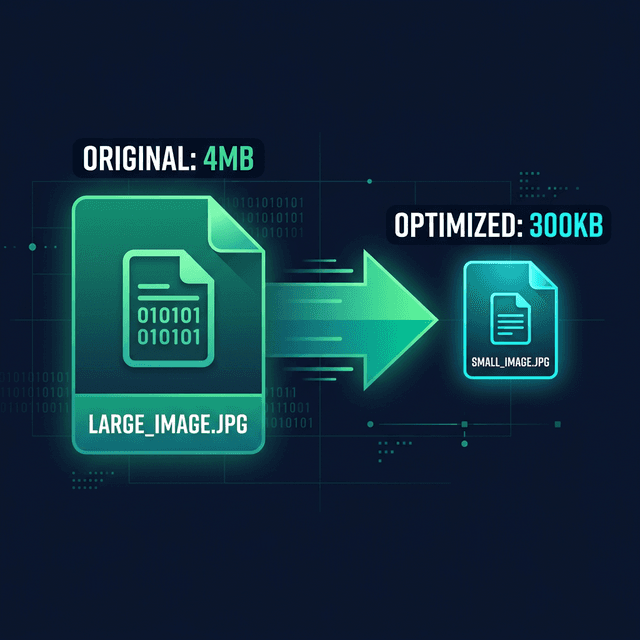
Here's the myth most people believe: smaller file = worse image. I hear it all the time from friends trying to upload a resume or send a batch of vacation photos. That's not how modern image compression works. With the right technique, you can cut a 4MB photo down to around 300KB and not see the difference with the naked eye. Sure, sometimes formatting may act up if you push the compression slider way too far, but overall, it's a game-changer for saving space and uploading files faster.
The GenZDoc team builds free, privacy-first file tools and writes practical guides on PDF compression, image conversion, and everyday file management.
Lossless vs Lossy Compression — What's the Difference?
Before you compress anything, it helps to understand what's happening to your image behind the scenes. Whether you're submitting a college assignment at 11:59 PM and the portal screams "File too large," or you're just trying to email documents to your accountant, knowing the difference can save you a ton of stress.
✅ Lossless Compression
Think of this like perfectly packing a suitcase without throwing anything away. No pixels are removed; the file is just reorganized more efficiently. Size reduction: around 10–30%. This is best for logos, precise screenshots, and raw files you plan on editing heavily later.
✅ Lossy (Smart) Compression
This method removes data your eyes literally can't detect anyway — like stripping out 50 redundant shades of the exact same blue sky. Size reduction: 50–90%. It is by far the best choice for photos, social media, and web images. It stays visually identical at quality 80+.
For most of our everyday use cases — web uploads, email attachments, sharing on social networks — smart lossy compression at around 80–85% quality is the absolute sweet spot. You get massive file size savings with literally zero visible difference. You can zoom in all you want, and you still won't be able to tell what changed.
Example: Why You Need This for Job Applications
Let's talk about a very real scenario that happens all the time. You've just finished updating your design portfolio or resume. You go to upload it to a company's career portal, and you get rejected with the dreaded warning: "File exceeds 2MB limit." However, your PDF or portfolio is 8MB because you included some high-res photos of your past work.
Instead of deleting your best case studies or awkwardly splitting the file into two emails, you can just run the original images through a compressor. Suddenly, those 1.5MB images become 150KB each. Your portfolio document shrinks down to 1.2MB total. You upload it successfully, it still looks crisp and professional to the hiring manager, and you didn't have to sacrifice a single piece of your hard work. This exact same logic applies everywhere: from sharing dense family photo albums via WhatsApp to uploading property pictures for a professional real estate listing. Don't let arbitrary file limits hold you back!
The Fastest Method: Use GenZDoc Image Compressor
Honestly, you can skip the confusing settings and skip downloading clunky software. Here's the simplest, most straightforward way to compress any image right now directly from your browser:
Open the Image Compressor
Navigate to GenZDoc's free Image Compressor online. There are no paywalls and no sign-up needed.
Upload Your Image
Drag, drop, or simply browse your files. We support everything: JPG, PNG, WebP, and more.
Set Your Quality Level
Use the intuitive slider. Dialing it into 80% quality gives you the perfect balance of tiny file size and razor-sharp clarity for most photos.
Download the Result
Your compressed image is ready in seconds. Check the file sizes — the difference is usually remarkable.
Which Format Should You Use?
Choosing the correct file format is easily half the battle. I've seen people save text-heavy documents as JPEGs and wonder why the text looks crunchy and distorted. Here's a quick, no-nonsense guide to picking the right format for the job:
The best choice for real-world photos and complex imagery. It compresses beautifully. Using quality levels between 75–85% is ideal for web uploads, blogs, and regular viewing.
Perfect for logos, flat illustrations, screenshots, and anything requiring a transparent background. Keep in mind that it doesn't compress nearly as small as JPG for real-world photos.
The modern superhero format. It is up to 30% smaller than JPG at the exact same quality! It's the standard for modern websites, though a few older desktop apps might still struggle to open it.
If you want to dive deeper into all the technical format differences, definitely check out our full guide: PNG vs JPG: Which Format Should You Use?
Common Mistakes to Avoid
Over my years of dealing with website optimization and document uploads, I've watched people make these exact same compression mistakes time and time again. Avoid these traps to keep your images looking pristine:
- Compressing text as JPG: If your image is mostly text (like a scanned contract, a receipt, or an infographic), always save and compress it as a PNG or PDF. JPG compression famously adds terrible "artifacts" — those grainy, fuzzy smudges right around the edges of text.
- Going past the point of no return: It's tempting to minimize file size, but pushing the quality slider down below 60% or 50% usually results in muddy, heavily pixelated photos. Stick to the reliable 75–85% range for total safety.
- Compressing an already compressed file: Sometimes an image you downloaded from social media has already been aggressively compressed by their servers. Re-compressing it will just mathematically degrade the quality without saving you much space. Always try to start from the original!
Pro Tips to Compress Even Further
Want to go the extra mile? Here are a few advanced tricks to push those file sizes down even closer to zero:
💡 Resize before you compress
A massive 6000×4000px photo displayed at only 800px wide in an email or blog post is a massive waste of data. Resize to your actual intended display dimensions first, and then compress it. This strategy alone can easily cut your file size by 70%. Just be aware that sometimes formatting may break or blur if you resize it way too small.
💡 Strip the hidden metadata
Every photo you take on your phone contains hidden EXIF data — this includes exact GPS locations, camera models, and timestamps. This not only adds unnecessary data bloat but is also a privacy risk! A good compressor will strip this out automatically for you during the compression pass.
💡 Batch your workflow
If you work in a real estate office or process lots of e-commerce photos, don't do them one by one. Grab a massive folder of images and drag them all simultaneously into the compressor. You'll save hours of tedious clicking.
Real-World Size Comparisons
Seeing is believing. Here is exactly what typical compression results look like in common daily scenarios:
| Image Type / Scenario | Original Size | After 80% Compression | Total Savings |
|---|---|---|---|
| DSLR Photo (JPG) | 4.8 MB | 380 KB | ↓92% |
| iPhone Screenshot (PNG) | 1.2 MB | 280 KB | ↓77% |
| Vector Logo (PNG) | 450 KB | 180 KB | ↓60% |
| Heavy Social Media Post (JPG) | 2.1 MB | 195 KB | ↓91% |
Remember: Results will vary sharply depending on your actual image content and its starting quality. Rich, textured photos compress much more effectively than flat graphic designs.
When Does Quality Actually Suffer?
You shouldn't blindly compress everything. Be extra careful in these specific situations, where aggressive compression will noticeably hurt the final quality:
- ✕Heavy Textures: Compressing below 60% quality on photos packed with fine detail (like animal fur, human hair, or dense forest foliage) will blur the texture.
- ✕Text-Heavy Elements: Compressing text-heavy UI screenshots as JPG instead of PNG. Trust me, it ruins the crisp edges around letters.
- ✕Generational Data Loss: Re-compressing a file that has already been compressed once before. It's like photocopying a photocopy; it gets messy very fast.
Always do a quick visual preview before you finalize and send your files — especially if you intend to use them for physical print. If you are specifically dealing with web images, please read our targeted complete guide: How to Compress Images for Web Without Losing Quality.
Compress Your Image Now
It's free, instant, and requires no sign-up. Upload any image right now and see the space savings for yourself.
Open Image Compressor →