How to Merge PDF Files for Free (Combine PDFs in Seconds)
Got a contract in one PDF, an ID scan in another, and supporting documents in a third? Instead of sending three separate files and confusing everyone, merge them into a single clean PDF in under a minute. Here is the fastest way to do it for free without installing anything.
The GenZDoc team builds free, privacy-first file tools and writes practical guides on PDF compression, image conversion, and everyday file management.
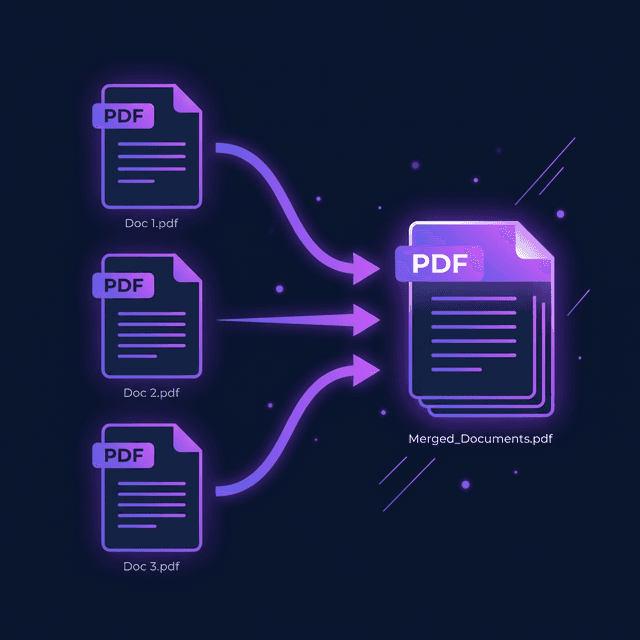
Real-Life Example: The Bank Loan Application
When my brother applied for a home loan, the bank's online portal required a single PDF containing his income certificate, last 6 months of bank statements, property documents, and two forms of ID. That's potentially 15 separate files.
He spent 20 minutes trying to figure out how to combine them in Adobe Acrobat — only to realize his trial had expired. After switching to an online PDF merge tool, he had everything combined into one correctly ordered, 18-page PDF in about 4 minutes. The loan officer got one clean document instead of a confusing email chain with 15 attachments.
Government portals, university admissions offices, and HR departments all prefer this approach. Sending one organized PDF looks far more professional than a scattered collection of files.
When Do You Need to Merge PDFs?
PDF merging is one of those tasks that comes up constantly but nobody thinks about until they need it urgently. Here are the most common scenarios:
Combining a multi-part application form
Merging medical records from different providers
Packaging invoices, receipts, and contracts into one file
Submitting multiple supporting documents to a government portal
Bundling transcripts, certificates, and cover letters for job applications
Combining scanned pages that were scanned one at a time
How to Merge PDFs Using GenZDoc (Easiest Method)
Works in your browser, no download, free for everyone:
Open the PDF Merge Tool
Go to GenZDoc's PDF Merge & Split tool. No account needed.
Upload Your PDFs
Add all the PDF files you want to combine. You can add them in any order — you'll be able to rearrange them.
Drag to Reorder
Sort your files in the exact order you want them to appear in the final document.
Merge & Download
Click Merge. One clean, combined PDF downloads instantly.
Other Ways to Merge PDFs
Adobe Acrobat (Paid)
The gold standard. Tools → Combine Files → Add Files → Combine. Accurate and powerful, but costs $15–25/month for a subscription most people don't need.
macOS Preview (Free, Mac Only)
Open a PDF in Preview, open the Thumbnails sidebar (View → Thumbnails), then drag pages from another PDF directly into the thumbnail panel. Save. It's actually brilliant once you know the trick.
Microsoft Word (Workaround)
You can insert a PDF into a Word doc as an object, then export as PDF — but this often garbles the formatting. Avoid this unless you have no other option.
Common Mistakes to Avoid
- Not checking page order before merging: A merged PDF with pages in the wrong order looks sloppy and can confuse a recipient. Most online tools let you preview the order before merging — always do this step.
- Merging password-protected files: If any of your source PDFs have editing restrictions, the merge will fail or produce an incomplete result. Unlock them first using a PDF unlock tool before merging.
- Ignoring the file size after merging: Combining six files adds their sizes together. A merged PDF might be 40MB — too large to email. Always check the resulting size and compress it if needed.
What About Splitting? (The Reverse)
Sometimes you need the opposite — you have one big PDF and want to break it into smaller parts. The same tool handles both:
Merge
Multiple PDFs → One PDF. Use when submitting documents to a portal or packaging files for a client.
Split
One PDF → Multiple files. Use when a PDF is too large to upload or when you only need to send certain pages. See: Reducing PDFs for WhatsApp.
Pro Tips for a Clean Merged PDF
Check page order before merging. Once merged, it's easy to re-split and merge again, but proofing first saves time.
Compress after merging if the file is large. Merging adds up file sizes. Run the result through our PDF Compressor if it's too big to send.
Make sure all source PDFs aren't password-protected. Locked PDFs can't be merged until unlocked. Use our Unlock PDF tool if needed.
Name merged files clearly. Instead of "merged.pdf", name it "John_Doe_Loan_Application_March2026.pdf" — the recipient will thank you when they need to find it later.
Ready to Merge Your PDFs?
Combine any number of PDFs in seconds — free, private, no sign-up.
Open PDF Merge Tool →