How to Convert PDF to Word (Editable Document) — Free
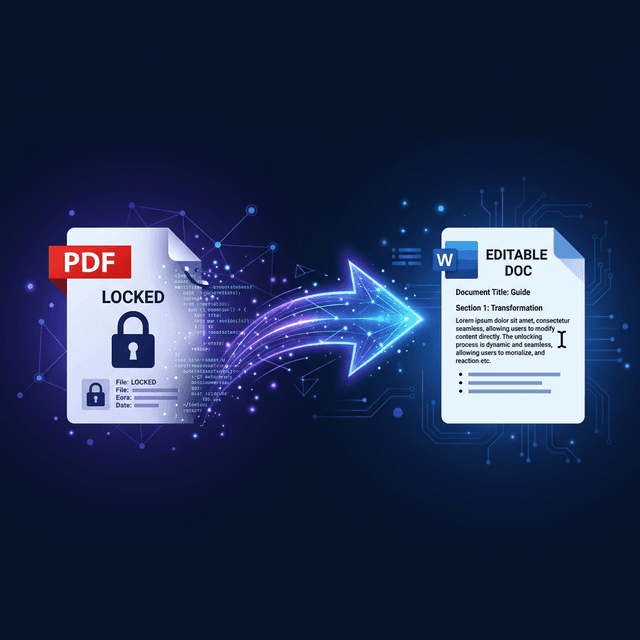
It happens to the best of us. A client, professor, or vendor emails you a beautiful, finalized PDF document. You open it, only to realize a crucial name is spelled wrong, a date needs changing, or a financial figure is incorrect. You try to click the text to backspace it, but nothing happens. The document is locked. Here is exactly how to bypass that lock and convert it into a fully editable Word document without manually retyping a single sentence.
The GenZDoc team builds free, privacy-first file tools and writes practical guides on PDF compression, image conversion, and everyday file management.
Real-Life Example: The Agency Contract Nightmare
Consider the common scenario faced by Emily, a freelance marketing consultant. After three weeks of negotiations, a corporate client sent over their master service agreement. However, they sent it as a flat PDF file. Emily noticed that Section 4 listed her payment terms as Net-60 instead of her required Net-30.
It was a Friday afternoon, and the client's legal team had already gone offline for the weekend. Emiliy couldn't sign it as is, but she also couldn't wait until Monday. Instead of retyping a 12-page legal contract from scratch just to change one digit, she ran the contract through a secure PDF to Word converter. Within ten seconds, she had a flawless Word document. She edited the '60' to a '30', turned on 'Track Changes', and sent it back. That tech trick saved her weekend.
When Do You Need PDF to Word Conversion?
While PDFs are fantastic for keeping a document looking identical on every screen, their un-editable nature becomes a liability when collaboration is required. You generally need this tool when:
Editing a vendor contract to fix a minor typo
Filling out an outdated government form that lacks interactive fields
Reusing paragraphs of text from an archived PDF report
Updating a graphic resume you exported without saving the source file
Common Mistakes When Converting PDFs
- Blindly trusting OCR for legal numbers: If your PDF is a scanned photo of a paper contract, the converter has to guess the letters (OCR). Sometimes a "0" looks like an "O". Always proofread financial data after conversion.
- Converting heavily graphical brochures to Word: Word is meant for text paragraphs, not Adobe Illustrator layouts. If you try converting a magazine layout to Word, the text boxes will shatter across the page. Stick to text-heavy documents.
- Forgetting to convert back to PDF: Once you edit the Word document, do not send the Word file back to the client. Always save it as a pristine PDF again to lock your new changes.
Method 1: GenZDoc PDF to Word (The Fastest Way)
Using specialized cloud software designed for this task is almost always the cleanest path. Our internal engine parses the PDF code layer by layer rather than just blindly guessing.
Open GenZDoc PDF to Word Converter
A free browser tool. No download or account creation required.
Upload Your Locked PDF
We support both digital text-based and scanned image-based PDFs.
Initiate the Conversion
Paragraphs, tables, and formatting are extracted and rebuilt automatically.
Download Your .docx File
The resulting file opens immediately in Microsoft Word or Google Docs.
Method 2: Hack the PDF Open inside Microsoft Word
If you are working offline and need a quick fix, modern versions of Microsoft Word (2013 and newer) can open a PDF natively. However, be warned: the layout routinely breaks.
- Launch Microsoft Word → Navigate to File → Open
- Select your PDF file and click Open
- Word will warn you about conversion time. Click OK.
- Edit the recovered text document, then hit Save As .docx
Critical Warning: Complex table layouts, exact margins, and embedded images regularly fail to convert perfectly in native Word. Specialized online tools handle these complex elements much better.
Fundamental Difference: Text-Based vs Scanned PDF
Why do some PDFs convert like magic while others turn into gibberish? It depends on the internal structure of your file:
📄 The Clean Text-Based PDF
This file was created directly from a modern word processor like Word or a web browser. You can highlight the text with your mouse. This converts seamlessly with near 100% structural accuracy.
📷 The Messy Scanned PDF
This file is effectively a photograph of a physical paper page. It requires AI OCR to guess the shapes of words. Accuracy heavily depends on scan lighting quality. 300 DPI+ resolution is ideal.
Pro Tips for Absolute Best Results
💡 Strip passwords before converting
Converters cannot read violently encrypted files. Always unlock highly password-protected PDFs first before attempting to convert them.
💡 Convert only the necessary pages
If you convert a gigantic 400-page manual just to edit Page 12, Microsoft Word might crash trying to load all that layout data. Extract just Page 12 first, convert that single page, edit it, and merge it back.
Final Checklist for Clean Editing
Always manually proofread the converted output. OCR engines occasionally misread similar characters, turning "rn" into a messy "m" or confusing a "1" with a lowercase "l".
Verify precise table borders. Complex Excel tables routinely lose their invisible grid lines during extraction. Toggle "View Gridlines" inside Word to ensure everything is aligned.
After editing your changes, always convert back to PDF: Convert Word Back to PDF.
Break Open Your Locked PDF to Word
Safely, totally free, insanely instant, works on any digital device. No annoying sign-ups or hidden watermarks.
PDF to Word — Secure & Free →Explore Related Articles
Native PDF vs Word for Legal Contracts
Which format protects your professional liability better?
Quickly Convert Standard Word to PDF
Go confidently backwards from Word directly into a highly portable clean locked PDF.
The Absolute Best Free PDF Tools
Professional business software without the enterprise subscription cost.