How to Crop PDF Pages Online (Free, No Software)
Sometimes a PDF has massive margins, a watermark in the corner you want cut, or a scanned page that's slightly off-center. Cropping fixes all of that — and you don't need Acrobat or any paid software to do it. This guide shows you exactly how, along with when cropping is the right tool for the job (and when it isn't).
The GenZDoc team builds free, privacy-first file tools and writes practical guides on PDF compression, image conversion, and everyday file management.
Real-Life Example: The Scanned Textbook Chapter
A teacher I know regularly scans individual chapters from textbooks to share with her students digitally. Her office scanner adds a thick 3cm grey border around every page — a scanning artifact from the scanner lid not closing perfectly flat over a thick book.
The resulting PDFs look amateur. Students are zooming in past the grey border to read the content. By running the scanned PDF through a crop tool and setting the crop area to eliminate the grey border on all pages simultaneously, the final document looks clean and professional. The content fills the entire page. It takes about 90 seconds total.
What Exactly Does Cropping a PDF Do?
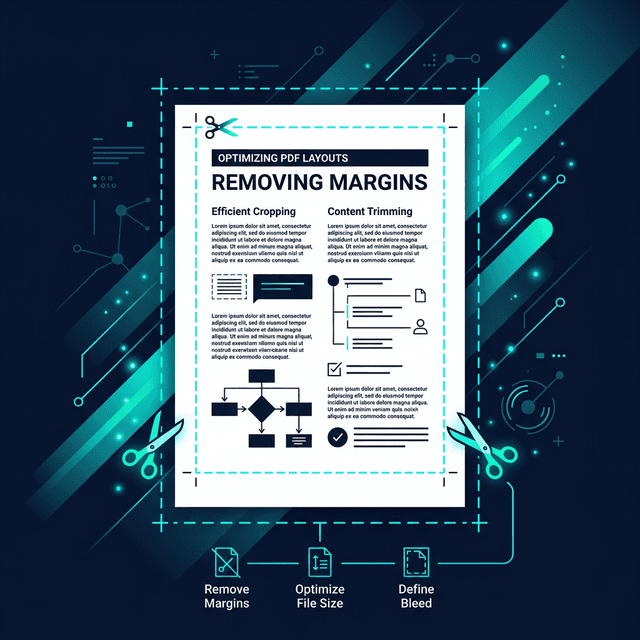
Cropping a PDF adjusts the visible area of one or more pages. Think of it like cropping a photo — you're defining a rectangle that becomes the new "edges" of the page. Everything outside that rectangle is hidden.
⚠️ Important to Know
In most PDF implementations, cropping only hides content — it doesn't permanently delete it from the file. The original data is still technically in the PDF. If you need permanent removal (for security or redaction), use a dedicated PDF Redact tool instead.
Common Reasons to Crop a PDF
Remove large blank margins from a scanned document
Cut off a page header or footer before sharing
Resize page content to fit a specific print size
Extract just a portion of a page as its own page
Trim a chart or table that has extra whitespace around it
Focus readers on the relevant area of a dense report
How to Crop PDF Pages Using GenZDoc
Open the Crop PDF Tool
Go to GenZDoc's Crop PDF tool. No account needed.
Upload Your PDF
Upload any PDF. Password-protected files need to be unlocked first.
Select Your Crop Area
Use the crop handles to define the area you want to keep. You can apply the same crop to all pages or different crops per page.
Apply and Download
Click Crop. Download the cropped PDF — instantly adjusted to your specifications.
Crop vs. Delete vs. Redact
These three operations sound similar but do very different things:
✂️ Crop — Adjust visible area
Changes what you see on the page. Content outside the crop box is hidden, not deleted. Best for layout adjustments and removing blank space.
🗑️ Delete — Remove entire pages
Removes complete pages from the PDF. Use the Remove Pages tool for this. Good for stripping out irrelevant sections before sharing.
⬛ Redact — Permanently remove content
Permanently blacks out sensitive information. Content is truly gone — this is what you use for SSNs, signatures, or confidential information before sending to third parties.
Common Mistakes to Avoid
- Cropping to delete sensitive information: This is a common security mistake. If you crop out a credit card number or address, it's still in the file — just hidden. Anyone who "uncropped" your PDF would see it. Use a proper redaction tool for anything sensitive.
- Assuming cropping reduces file size significantly: It often doesn't. Cropping only changes the visible viewport. The full page data is still stored. If your goal is a smaller file, compress after cropping.
- Cropping a locked PDF: If the PDF has editing restrictions, most crop tools will fail. You need to unlock it first with a PDF password remover (if you have the permission to do so).
Pro Tips for Cleaner Results
💡 Crop all pages at once
If all your pages have the same border issue (common in scanned documents), apply the crop to "All Pages" rather than doing them one by one. It saves a lot of time for long documents.
💡 Compress after cropping
Since cropping doesn't always shrink the file, run your cropped PDF through our PDF Compressor afterwards if you need to email or upload it within a size limit.
After Cropping: Common Next Steps
PDF too large? Run it through our PDF Compressor. See: 5 Ways to Compress a PDF.
Need to merge multiple cropped pages? See: How to Merge PDF Files.
Need to protect the cropped document? See: How to Protect a PDF with a Password.
Crop Your PDF Now
Free, online, no software download. Trim your PDF to exactly what you need.
Open PDF Cropper →